
WordPress 7.1.2: Critical Security Update and a Safe Upgrade Plan

WordPress 7.1.2 was released on September 22, 2026 as a critical security update. It fixes a vulnerability that, under specific server and theme conditions, could allow an unauthenticated attacker to make template resolution include a readable local PHP file outside the active theme directories. In the worst case, this could lead to remote code execution.

The official WordPress recommendation is clear: update sites immediately. However, “immediately” does not mean “without preparation.” A production website, WooCommerce store or project with a custom theme needs a short and controlled process that reduces the chance of downtime.

What matters about WordPress 7.1.2

According to the official WordPress 7.1.2 release announcement, this is a security release containing a fix for a critical vulnerability. The public description intentionally avoids publishing a step-by-step exploitation path, giving site owners time to patch their installations.

The practical conclusions are straightforward:

  • delaying the update for weeks is not a good option;
  • a WAF or security plugin does not replace a patched WordPress core;
  • a site without public user registration can still be a target;
  • custom themes and unusual server configurations require careful testing.

A safe upgrade plan

1. Record the current state

Before making changes, record the installed versions of WordPress, PHP, the active theme and all business-critical plugins. For WooCommerce, separately note the versions of WooCommerce itself, payment gateways, shipping extensions, multilingual tools and any CRM or accounting integrations.

This inventory makes it much easier to identify what changed if an error appears after deployment.

2. Create a verified backup

You need both the database and the site files. An archive that has never been tested is not yet a reliable recovery plan. Confirm that the backup opens correctly, the database is not corrupted and the storage location does not depend on the WordPress installation you may need to restore.

For stores, create the backup during a short low-traffic window so new orders are not lost between the snapshot and the completed upgrade. WordPress also maintains an official guide to WordPress backups.

3. Test on staging

A staging copy reveals conflicts without affecting visitors. Upgrade staging first, clear all caches and run a concise smoke test:

  • the homepage and key templates load correctly;
  • administrators can sign in;
  • the post and page editors do not show JavaScript errors;
  • forms can be submitted;
  • Polylang language switching points to the correct URLs;
  • WooCommerce can add a product to the cart and complete a test checkout;
  • scheduled jobs and external integrations are not failing.

4. Review theme and plugin compatibility

WordPress core may upgrade correctly while an outdated plugin breaks one workflow. Pay particular attention to extensions that interact with templates, the filesystem, media uploads, caching, security or URL routing.

If a plugin has not been maintained for a long time, lacks a clear owner or duplicates another extension, schedule a replacement. A smaller set of well-maintained dependencies is usually easier to secure and support.

5. Upgrade production during a controlled window

Choose a period with minimal traffic. For a store accepting live orders, record when maintenance begins and keep the process focused. A sensible sequence is:

  1. create a fresh backup;
  2. pause deployments and editorial changes;
  3. upgrade WordPress to 7.1.2;
  4. upgrade compatible plugins and the active theme;
  5. purge page cache, object cache and CDN cache;
  6. run the critical-path smoke test.

What to verify after the update

Do not stop at the “update completed” message. Verify at least the following:

  • HTTP status codes for the homepage, blog, shop and service pages;
  • PHP, WordPress and web server logs;
  • the dashboard, Media Library and post saving;
  • forms, email delivery and transactional messages;
  • cart, checkout and a test order;
  • canonical tags, robots directives, sitemaps and language hreflang links;
  • Core Web Vitals or at least a before-and-after Lighthouse run.

It is also worth scanning the files again with a security tool. Installing the patch closes the vulnerability, but it does not remove an earlier compromise if one has already happened.

When to involve a developer

Bring in a specialist when the site relies on custom templates, custom plugins, a non-standard deployment workflow, complex multilingual routing or business-critical WooCommerce integrations. A developer can compare staging and production, review logs and isolate a conflict without randomly disabling every component.

Conclusion

WordPress 7.1.2 is not a cosmetic release. Because the security fix is critical, the update should be installed promptly—with a verified backup, staging validation and a short rollback plan. That process takes a little longer, but it dramatically reduces the risk of downtime and unexpected failures.

This article is current as of September 24, 2026.
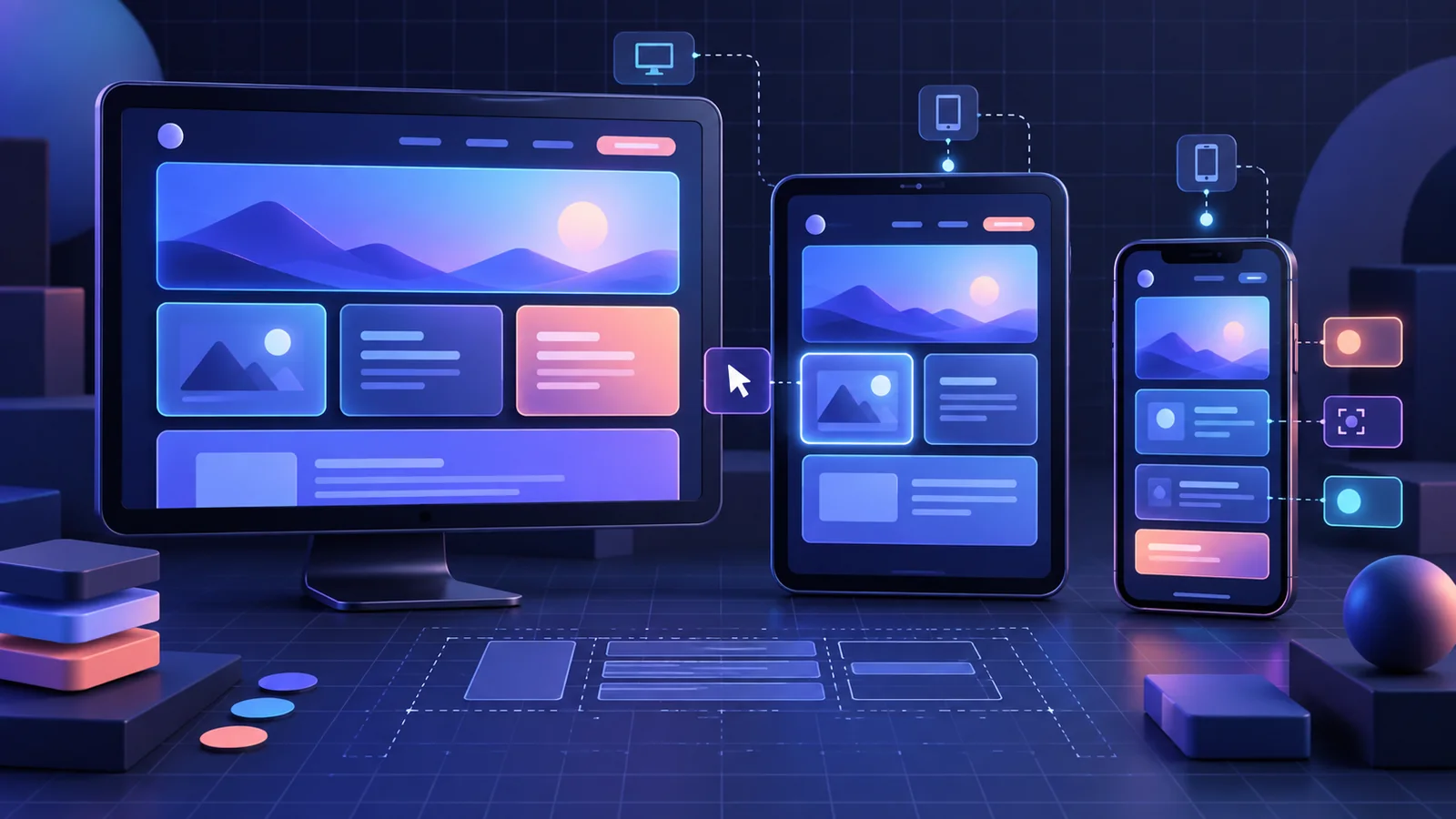
Responsive Styles and Pseudo-States in theme.json: A WordPress 7.1 Guide

WordPress 7.1 introduced responsive block styles and standardized pseudo-states in Global Styles and theme.json. This is an important change for block theme developers: part of the responsive logic that previously lived in separate CSS can now be expressed through the WordPress style system.

This guide explains how @mobile, @tablet, :hover, :focus and :focus-visible work, where the new API stops, and how to adopt it without creating chaos in an established theme.

What changed in WordPress 7.1

Responsive styles can be defined at three levels:

  • in theme.json for every block of a particular type;
  • through the Global Styles interface;
  • on an individual block through its existing style attribute.

The base style acts as the desktop version. Values under @tablet and @mobile override only the properties they define. If the mobile state does not define a color, for example, the block continues to use its base color.

The feature applies to blocks using standard block supports such as typography, color, background, border, dimensions, spacing and layout. The official Responsive block styles and configurable viewports in WordPress 7.1 developer note provides the full technical background.

A basic responsive style example

Suppose a Group block needs generous padding on large screens and compact spacing on phones:

{
  "version": 3,
  "styles": {
    "blocks": {
      "core/group": {
        "spacing": {
          "padding": {
            "top": "3rem",
            "right": "3rem",
            "bottom": "3rem",
            "left": "3rem"
          }
        },
        "@mobile": {
          "spacing": {
            "padding": {
              "top": "1rem",
              "right": "1rem",
              "bottom": "1rem",
              "left": "1rem"
            }
          }
        }
      }
    }
  }
}

WordPress generates the media query and a stable class for the block. You do not need to duplicate the selector in style.css or manually keep editor styles in sync.

Configuring breakpoints

WordPress uses the following defaults:

  • @mobile: up to 480px;
  • @tablet: above 480px and up to 782px.

A theme can provide its own values through the top-level settings.viewport property:

{
  "version": 3,
  "settings": {
    "viewport": {
      "mobile": "30rem",
      "tablet": "45rem"
    }
  }
}

Values must be non-negative numeric lengths using px, em or rem. Percentages, CSS functions and unitless values are ignored. There is no @desktop key: desktop is the base style.

Pseudo-states without separate CSS

WordPress 7.1 supports :hover, :focus, :focus-visible and :active directly inside the block style object. The user interface initially exposes these states for the Button and Navigation Link blocks.

{
  "styles": {
    "blocks": {
      "core/button": {
        "color": {
          "background": "var:preset|color|contrast",
          "text": "var:preset|color|base"
        },
        ":hover": {
          "color": {
            "background": "var:preset|color|accent-2"
          }
        },
        ":focus-visible": {
          "border": {
            "color": "var:preset|color|accent-1",
            "width": "2px"
          }
        }
      }
    }
  }
}

A pseudo-state can be nested inside a responsive state. For example, mobile hover styling can use a different contrast treatment from the base state:

"core/button": {
  "@mobile": {
    ":hover": {
      "color": {
        "background": "var:preset|color|contrast",
        "text": "var:preset|color|base"
      }
    }
  }
}

The full model is documented in the official Pseudo and custom style states in WordPress 7.1 developer note.

Styling the current navigation item

Navigation Link gained the -current custom state. It represents the link matching the current page and can contain a nested hover state:

"core/navigation-link": {
  "-current": {
    "color": {
      "text": "var:preset|color|contrast"
    },
    ":hover": {
      "color": {
        "text": "var:preset|color|accent-1"
      }
    }
  }
}

This can replace part of the theme-specific CSS targeting .current-menu-item and keeps the state inside the theme’s design system.

When to restrict the editor interface

On client sites, too many controls can cause accidental departures from the design system. WordPress lets you hide state editing without disabling the styles that are already saved:

add_filter( 'block_editor_settings_all', function ( $settings ) {
    $settings['blockStatesEditingEnabled'] = false;
    $settings['responsiveEditingEnabled']  = false;
    return $settings;
} );

The filter only removes controls from the interface. Styles stored in theme.json, Global Styles and block attributes continue to render.

A practical adoption workflow

  1. Audit the CSS. Locate media queries for typography, spacing, layout and button states.
  2. Move only systematic rules. Unique complex components do not automatically benefit from a theme.json migration.
  3. Define breakpoints once. Avoid copying different values between CSS, JavaScript and JSON.
  4. Test the editor and frontend. Both environments should show the same spacing hierarchy and interactive states.
  5. Test keyboard navigation. Hover styling without a clear :focus-visible state harms accessibility.
  6. Validate the schema. Some responsive and pseudo-state schema validation was refined in Gutenberg 23.8 after WordPress 7.1 shipped.

Common mistakes

  • creating an @desktop key instead of using the base style;
  • using percentages or calc() inside settings.viewport;
  • styling hover while forgetting focus and focus-visible;
  • duplicating the same rule in CSS and theme.json;
  • giving editors unrestricted state controls without editorial guardrails;
  • testing only device preview instead of real browsers and touch devices.

Conclusion

The responsive and pseudo-state APIs in WordPress 7.1 do not replace CSS, but they move common design decisions into one coherent system. For block themes, that means less duplication, better editor-to-frontend parity and clearer rules for teams. Start with spacing, typography and buttons—the benefits are easiest to see there.

This article is current as of September 24, 2026.

WP-Hunter

Secure account access

Sign in, create an account, or recover your password.

Welcome back

Sign in to continue to your account.